
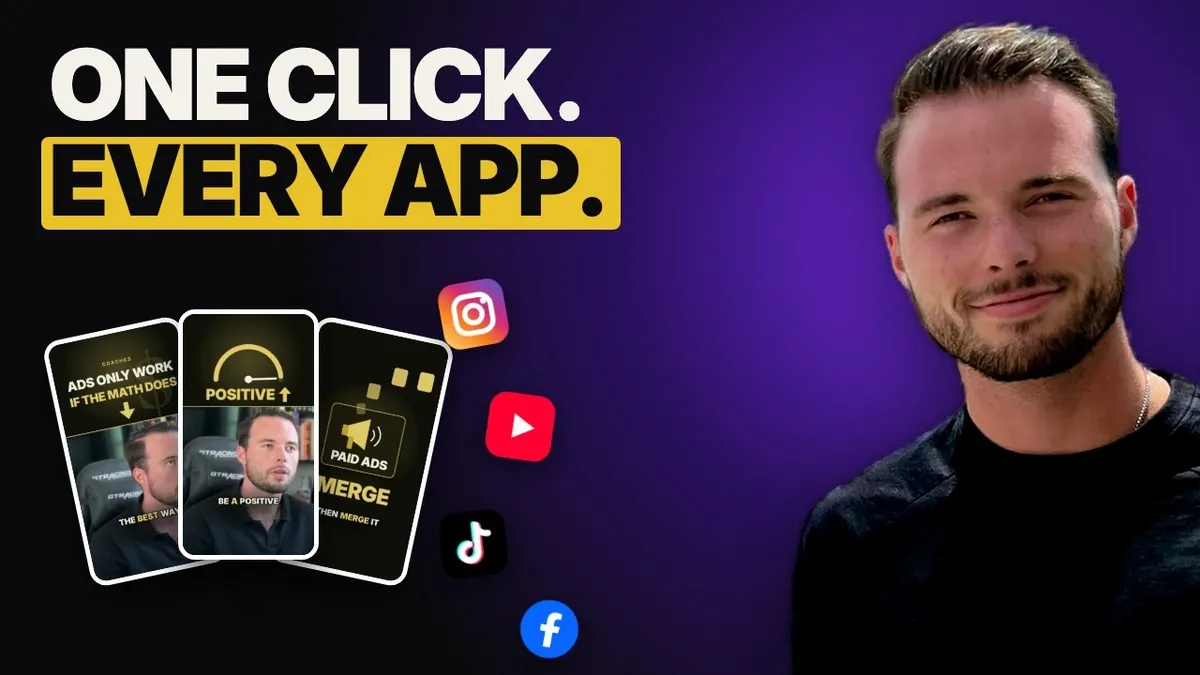
GoHighLevel Social Planner: Post to Every Platform at Once
A lot of coaches post content to get in front of their ideal client, but they lose hours every week logging into each app one by one. There's a simple fix. In this post I'm going to show you how to use the GoHighLevel social planner to post to every platform at once, the other features most people don't know are in there, and how I use AI on top of it so content goes out without me touching it.
Why posting one platform at a time wastes your week
Think about what posting looks like for most coaches. Go on Instagram and post. Go on Facebook and post. Go on YouTube and post. Go on TikTok. I could go down the laundry list of every social channel. Each one takes time, and then you have the time in between, switching apps, logging in, finding the file again.
All of that is time you could spend on the more important parts of your coaching business. Serving clients. Selling. Building your offer.
Want to go even deeper? Watch the full video.
What GoHighLevel is, quickly
If you're not familiar with it, GoHighLevel is the software I like to run a coaching business on. It's $97 a month, and it replaces a stack of tools that would cost you somewhere around $1,500 a month up to multiple thousands if you paid for each one separately. Phone system, email, automations, your pipeline, and so on. I wrote a full breakdown of why GoHighLevel is the one tool coaches need.
What a lot of people don't know is that the social planner is included at no extra cost. You connect all your social accounts in one place, and one post goes out to all of them.
Step 1: Connect your social accounts
- Log into GoHighLevel.
- On the left side, click Marketing.
- The first tab that opens by default is the Social Planner.
- Click the Socials button in the top right corner.
- Pick the platform you want, for example Instagram, sign in, and press Allow.
Once you allow it, the account shows up in your planner. Take a couple of minutes and go ahead and connect every platform you post on.
Step 2: Create one post for every platform
- Click New Post in the top right corner.
- For most posts, just choose Create New Post.
- Choose the channels you want. You can click each one, or make a group so one click selects them all. I have a group for all my personal Chris Barry accounts.
- Upload your video or image.
- Type your caption. It goes across every channel you picked.
- Add a first comment if you want one.
It even gives you a preview of what the post will look like on each platform.
If you want a different caption on one platform, click Customize each channel and change what you need. If you want it the same everywhere, leave it.
Step 3: Post now, schedule it, or send it for approval
When you're done, you have options at the bottom:
- Post it right now.
- Schedule it for later.
- Send it for approval if a team member made it and you want to check it first.
- Set it as a recurring post.
- Add it to a queue.
And so the bottom line is this. Instead of going to every platform, you come into one place one time, upload the video, write the caption, and click one button. It goes out everywhere. That's a quarter of the time, if not less, once you count all the switching in between.
Other features inside the social planner
A few more things live in the same place that most people never click on:
- Bulk upload. Map a whole batch of posts from a spreadsheet at once.
- Recurring posts. Content that goes out on a repeat schedule.
- Review requests. Ask people for reviews from the planner.
- RSS feed. Mostly used for a podcast, so new episodes post on their own.
- Approvals and categories. Keep a team's posts organized and checked.
- Comments. See and reply to comments from all your channels in one inbox, so you don't have to go into each app.
- Statistics. See the numbers for every connected account.
- Trends. See what's performing well in general right now.
Level 2: Let AI write and schedule the posts
Here's the part I told people to stay to the end for. If you use Claude, you can connect it to GoHighLevel. Instead of you writing the caption and uploading the post, you hand it to Claude and it does it for you and schedules it.
Level 3: Turn your calls into posts automatically
This is what I have running right now. I'm in a lot of Zoom calls. Coaching calls, strategy calls, sales calls. Here's the flow:
- My AI takes the Zoom recording.
- It finds the noteworthy moments inside of an hour long call.
- It pulls the transcript and cuts each moment into a 30 to 60 second clip.
- It takes out filler words and tightens the blank spaces so it's more engaging.
- It adds cuts, captions and a title on screen.
- It writes the post caption.
- It brings the clip into GoHighLevel and schedules it, spaced out around everything else already planned.
Some of those clips are fully edited by AI. A human never touches them. I just go to my normal meetings like I always do, and the content shows up in the planner. That's how you go from "I don't have much going out" to putting out a lot of content without it eating your week.
Don't get me wrong, you don't need level 3 to start. Level 1 alone will save you hours. If you want another simple time saver, here's how I use Loom to save hours every week. And posting more only helps if the posts are working, so read why your coaching content isn't getting clients too.
Your next step
Get into GoHighLevel. Click Marketing, then Social Planner. Connect your socials. Then make your first post to every platform at once. When that feels easy, hand the captions to AI. When that feels easy, look at turning your calls into clips.
FAQ
Does the GoHighLevel social planner cost extra?
No. It's included in the GoHighLevel subscription along with the phone system, email and automations.
Which platforms can I post to from GoHighLevel?
You can connect accounts like Instagram, Facebook, YouTube and TikTok, then send one post to all of them or pick which ones each post goes to.
Can I change the caption for one platform?
Yes. Click "Customize each channel" and edit the caption for just that platform. Everything else stays the same.
If you want to keep working on this with other coaches, join the free community here: td.coach/skool-start